How to Reset Your Password
Note:
Only users that signed up with email can reset their password. This is not available to users that Signed up with LinkedIn or Google.
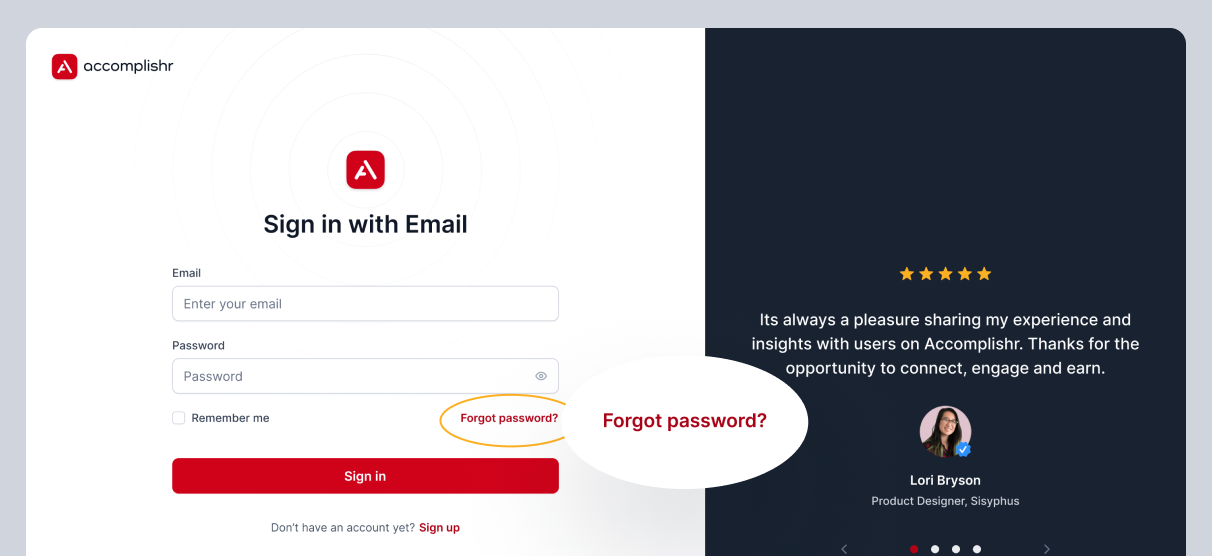
To reset your password, go to the Forgot Password page or click "Forgot password?" on the Sign in with Email page.
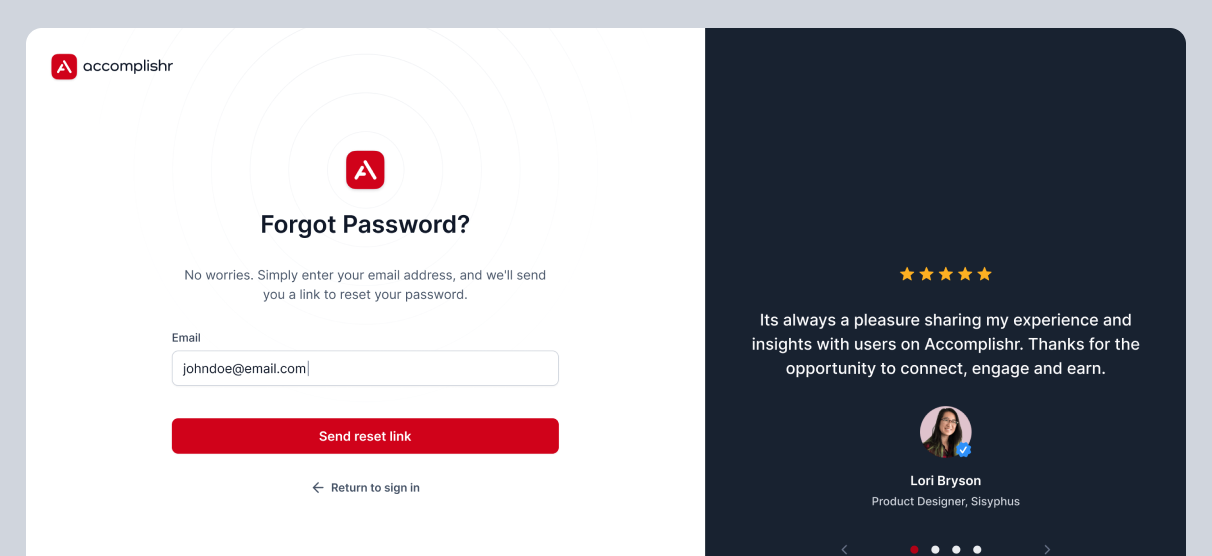
Enter the email associated with your Accomplishr account on the Forgot Password page. Click the “Send reset link” button. Accomplishr will send instructions on how to reset your password to the email address.
Click the "Reset My Password" button in the email you received. You will be redirected to the "Reset your Password page," where you can set a new password.
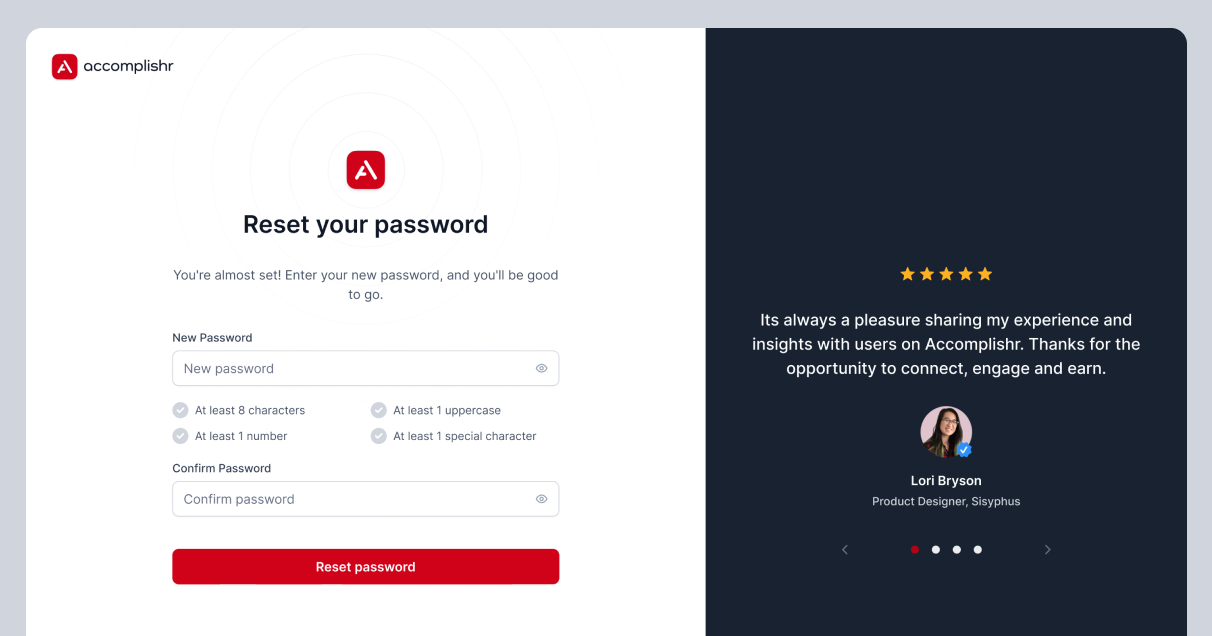
Enter a new password, ensuring it is at least 8 characters long and contains at least one uppercase letter, number, and special character. Then, re-enter the same password in the “Confirm Password” field and click the "Reset password" button.
After successfully changing your password, you'll see a “Success!” page. Click the “Return to sign in” button to log in using your email and the new password.
Note:
The password reset will be successful only if the new password matches the one entered in the confirm password field. If you encounter an error, verify and compare the passwords you entered. You can reveal the passwords by clicking the eye icon next to the respective input fields.


